
Evaluating Data Entry Fields
Peter's Professional Validation has the most extensive set of tools for validating
data entry fields on any platform. There's so much more to validation than just
having 27 validators controls. Each of those validators needs additional rules to
handle all the real-world cases that ASP.NET users encounter.
A fundamental goal of Peter's Data Entry Suite is to reduce the custom code that
you have to write.
Validator Controls
Peter's Professional Validation includes 27 Validator controls. The heart of each
of these validators is the "Condition", an object that determines how to evaluate
data on the page. The Condition object is portable. You will use it in the
MultiConditionValidator and
Enabler property, further
reducing your need to write custom code.
- RequiredTextValidator – Tests if a field's textual value is "blank" or not. You
can define what text represents "blank". It is similar to Microsoft's RequiredFieldValidator.
- RequiredListValidator – Tests if a ListBox, DropDownList, RadioButtonList, or CheckBoxList
is "blank". You can define what selected item represents "blank".
- MultipleRequiredControlsValidator - Tests several fields to determine how many
have been filled in (not “blank”). It supports these rules: All, All or none, Only
one, At least one, and a range.
- DataTypeCheckValidator – Tests a field's textual value to confirm it represents
a particular data type. It is similar to Microsoft's CompareValidator
when the Operator property is "DataTypeCheck".
- CompareToValueValidator – Tests a field's textual value against another value that
you supply. You determine the data type of the values and
the operator to compare the two. It is similar to Microsoft's CompareValidator when
the ValueToCompare property is used.
- CompareTwoFieldsValidator – Tests the values of two fields to each other. You select
the operator that is used in the comparison and the data type.
It is similar to Microsoft's CompareValidator when the ControlToCompare property
is used.
- DifferenceValidator – Evaluates two TextBox fields to determine if the difference
between their two values is a certain number apart from each other. You select the
data type (including dates), a value to compare and the
operator. For example, test that two dates are less than 60 days apart.
- RangeValidator – Tests a field's textual value is between a minimum and maximum
value. You determine the data type of the values. It is
similar to Microsoft's RangeValidator.
- RegexValidator – Tests a field's textual value against a regular expression. It
is similar to Microsoft's RegularExpressionValidator with the addition of properties
to control the RegEx options: Multiline and IgnoreCase. It also has a caching feature
to avoid the overhead of compiling the regular expression text into the RegEx object
with each request.
Design mode predefines more than 20 expressions including:
- U.S. and international phone numbers
- Several types of URLs
- U.S. and other postal codes
- Credit Cards with and without spaces
- U.S. Social Security Number
The Properties Editor for this validator includes a tool to test your Regular Expressions.
- CompareToStringsValidator – Tests a field's textual value against a list of strings.
If the text matches one of the strings, it is valid. For example, you want to have
the user type an answer of "Bird", "Cat" or "Dog". It allows you to use a datasource
(DataSet, DataTable, ArrayList) to populate the list of strings.
- EmailAddressValidator – Reviews the pattern of text for an email address to make
sure it confirms with standards. In addition, you can hook it up to Advanced Intellect's aspNetMX validation engine for more
thorough validation. Click
here for a demo.
- CreditCardNumberValidator – Confirms that the pattern is valid for credit card
numbers. Its evaluation rules confirm that the text is all digits, follows Luhn's
formula, and if desired, matches specific brands of credit cards. It does not provide
credit card number approval software.
- ABARoutingNumberValidator – Confirms that the pattern is valid for ABA routing
numbers such as check routing numbers. It confirms that the text is always 9 digits
that are confirmed with a checksum rule defined by the American Bankers Association.
- CharacterValidator - Tests a field's textual value to confirm that each character
is in a character set that you specify. For example, you require a password to be
letters, digits, and underscores only. This validator doesn't care about the order
or pattern of characters.
- TextLengthValidator – Evaluates the number of characters in a TextBox against a
minimum and/or maximum. It can evaluate the number of characters combined in two
TextBoxes, if desired.
- WordCountValidator – Evaluates the number of words in a TextBox against a minimum
and/or maximum. It can evaluate the number of words combined in two TextBoxes, if
desired.
- CheckStateValidator – Evaluates the mark within a checkbox or radio button.
- SelectedIndexValidator – Evaluates the selected index of a ListBox, DropDownList,
RadioButtonList, or CheckBoxList.
- SelectedIndexRangesValidator - Evaluates the selected index of a ListBox, DropDownList,
RadioButtonList, or CheckBoxList against a list of ranges. This way, you can have
several valid selected indexes.
- CountSelectionsValidator – Evaluates CheckBoxLists and multi-selection ListBoxes
to determine how many items are selected. You can establish a minimum and maximum.
- ListSizeValidator - Evaluates the number of items shown in a listbox or dropdownlist.
Typically used when the user interface allows adding and removing items in a list,
where you have a minimum or maximum for the number of items shown.
- CountTrueConditionsValidator – Lets you define a list of conditions for a number
of fields. Evaluates how many of those conditions are true and compares them to
a minimum and maximum. A common usage is with a list of checkboxes (not using a
CheckBoxList) to emulate the CountSelectionsValidator.
- DuplicateEntryValidator - Determines if three or more TextBoxes, DropDownLists,
or ListBoxes have a matching value. It reports an error when a duplicate is found.
- UnwantedWordsValidator – Compares a list of words to the text. It reports an error
when any of the words is found within the text. Use it to block bad language and
other words that are inappropriate. It has rules to catch words where letters are
separated by other characters like, if you are looking for "jerk", you will find
it in "j*e!r$k".
- CustomValidator – Build your own validator's condition. It is like Microsoft's
CustomValidator, where you associate an event handler to handle server side validation
and the name of a JavaScript function that you supply for client-side validation.
- IgnoreConditionValidator – This validator has no condition of its own. It is used
to hold an error message that you manually show by setting its IsValid property
false in some program code. While the CustomValidator forces you to move some of
your validation logic into its own event handler, this validator lets you keep all
of your logic in one common area.
The MultiConditionValidator Control
Many times, a rule for validation really needs to be built from multiple conditions
and fields. For example, you want one validator that combines the RequiredTextValidator
with the DataTypeCheckValidator. Or you have three TextBoxes and want one error
message to report any possible errors found between them.
DES provides the MultiConditionValidator to combine the power of Condition objects
taken from other validators into one validator. This single Validator often replaces
the need for the writing custom code with the CustomValidator and allows you to
benefit from all the multibrowser compatible client-side code already written for
validators.
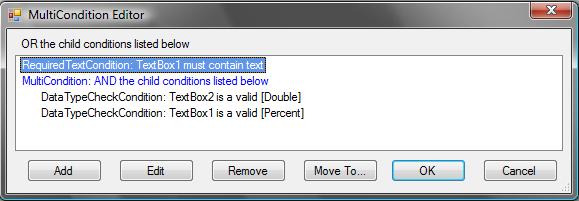
The MultiConditionValidator allows you to build complex boolean expressions like:
(Condition1 OR (Condition2 AND Condition3) OR (NOT (Condition4 AND Condition5 AND
Condition6)))
It includes a powerful design mode interface to help build the rules of your new
condition.
Validation Groups
Often pages have separate data entry areas with their own submit buttons and should
only validate the fields associated with the submit button that is clicked.
DES supports
Validation Groups, which lets you mark each validator and submit
button with a group name. The submit button will only validate those members of
its own group.
The Enabler Property
Each validator has an
Enabler Condition. This allows the validator to turn
itself on and off based on any condition you want. When off, the validator will
not attempt to evaluate the fields. For example, you have a TextBox whose RequiredTextValidator
should only validate when a checkbox is marked.
Often you will want to disable the validator when the data entry field being evaluated
is invisible, disabled, readonly or have some other attribute. DES supplies these
specialized conditions for use in the Enabler Condition: VisibleCondition,
EnabledCondition, ReadOnlyCondition, ClassNameCondition, and CompareToValueCondition.
This last condition can evaluate almost any DHTML/DOM attribute or style on the
data entry field.
The Enabler Condition can use the powerful MultiCondition (the condition from the
MultiConditionValidator) to build complex boolean expressions such as: "enable this
validator when the TextBox is visible AND enabled AND the CheckBox1 is checked".
Data Types
Any validator that translates text into a particular data type supports a customizable
list of data types. The data types that come with DES are:
- String
- String-Case Insensitive
- Integer
- Double
- Date
- Currency
- Currency with Symbol
- Percent
- Percent with Symbol
- Positive Integer
- Positive Double
- Positive Currency
- Positive Currency with Symbol
Peter's Date
and Time module users also get:
- Extended Date - on the DateTextBox with support for abbreviated and long date formats.
- Time Of Day - on the TimeOfDayTextBox
- Duration - on the DurationTextBox
You can define additional data types.
Data types support localization.
More Features on Validation Controls
- By default, the validator evaluates its condition when the user changes a field
and when they submit. You can turn off either of these actions.
- When the validator does not fire on submission, you can use the validator as a
warning message since it will not stop the user from submitting the page. For example,
"Values above 100 may generate a page that is too large for your printer." or "Dates
after March 30 cannot be guaranteed. Call us."
- When the validator does not fire when the field changes, you can show errors
only when the user submits. They can still show next to the field or only in the
ValidatorSummary control.
- All conditions have a "Not" property. This allows you to reverse the logic that
makes a condition true. For example, when this property is true on a RequiredTextValidator,
the TextBox is valid when it is blank. This property will frequently be used when
building complex Boolean expressions with the MultiConditionValidator.
- All conditions that evaluate against a TextBox have a "Trim" property to determine
if you want it to trim the text prior to evaluating the condition.
Peter's Data Entry Suite gives you feature rich
and interactive data entry web forms with over 100 web controls.
Start with better controls. Finish with better sites. |
Try It
Buy It
|